How to Fix a Pixelated Image Online: 5 Methods That Work
Learn why images become pixelated and compare five practical ways to fix them online, from Photoshop and Canva to mobile apps and AI depixelation.
A pixelated image is not always a lost image. If a photo looks blocky after being enlarged, downloaded, or shared through a messaging app, the right tool can often make its edges cleaner and its texture more natural.
This guide explains how to fix a pixelated image online with five practical methods, which tool to try first, and when no editor can restore real detail.
If you want to test your image now, open the AI image depixelator, upload a JPG, PNG, or WebP, and inspect the before-and-after comparison before downloading anything.
What is a pixelated image?
Every digital image is a grid of coloured squares called pixels. Pixelation becomes visible when that grid is too coarse for the size at which the image is shown.
Common causes include:
- Low original resolution. A 400-pixel-wide photo cannot fill a large screen or print without being enlarged.
- Heavy JPEG compression. Low-quality JPEG exports group colour information into blocks, especially around text, skin, and flat backgrounds.
- Social media and messaging apps. Many services automatically shrink and recompress uploaded photos.
- Screenshots. A screenshot captures only the pixels displayed on the screen, not the full-resolution source.
- Deliberate mosaics. Censoring replaces the original detail with large blocks. That information is removed, not merely hidden.
The first four problems can usually be improved. A deliberate mosaic cannot be reliably reversed.
Method 1: Use an AI depixelation tool
AI depixelation is usually the best first method for a small or compressed photo. Instead of stretching the grid, a super-resolution model studies the scene and reconstructs plausible edges and texture.
Here is the complete workflow:
- Open Depixelate Image AI.
- Upload the largest version of your JPG, PNG, or WebP. Files can be up to 10 MB.
- Start the enhancement and wait for processing to finish.
- Drag the comparison slider across the result. Inspect faces, text, and repeated patterns at full size.
- Download the enhanced PNG if it looks natural.
AI reconstructs missing detail; it does not recover a perfect copy of the original scene. Use the output for visual improvement, not identification or evidence.
Before and after example
This compressed product photo shows blocks around high-contrast details:
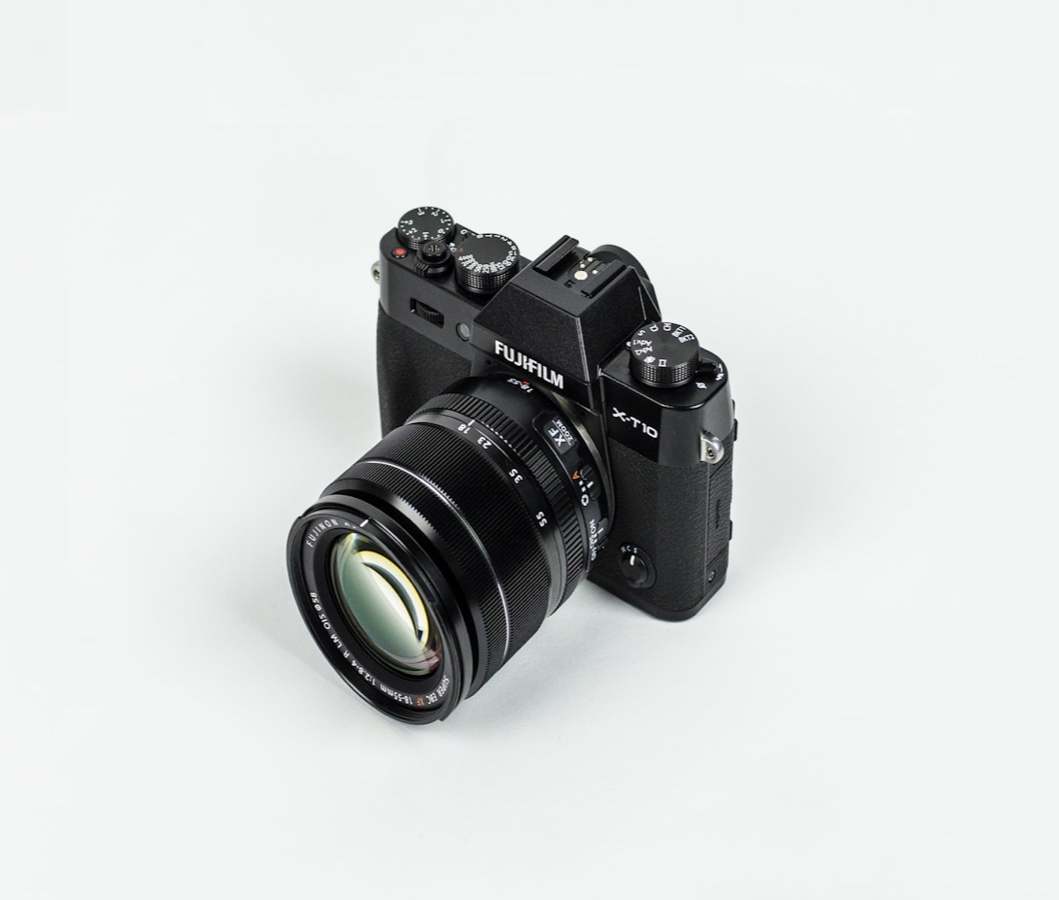
After AI processing, the outline and texture look cleaner:
Try the same workflow on your image →
Method 2: Repair it in Photoshop
Photoshop gives you more control for one important image. Its browser and desktop versions use a similar sequence:
- Duplicate the image layer so you can compare changes.
- Reduce JPEG artifacts or colour noise before sharpening.
- Open Image Size and enlarge once with Preserve Details or an AI-assisted super-resolution option.
- Apply Smart Sharpen gently. Concentrate it on real edges rather than skin, sky, or other flat areas.
- Mask any regions where sharpening makes blocks more obvious.
Photoshop is strong for print work or local corrections, but takes longer and requires careful settings.
Method 3: Improve the image with Canva
Canva is convenient for social posts or presentations. Its enhancement controls can help a mildly soft image. Keeping the photo smaller can also hide pixelation.
Canva works best when:
- the pixelation is mild;
- the final image will be viewed at social-media size;
- you need to combine the photo with text and layout elements;
- reducing the displayed size is acceptable.
It is less suitable for a severely compressed face or product shot because general enhancement controls do not reconstruct much missing structure.
Method 4: Use a conventional online editor
Browser editors can resize, denoise, and sharpen without installing software. Use this order:
- Apply a light denoise or artifact-reduction filter.
- Resize only to the dimensions you actually need.
- Add a small amount of sharpening after resizing.
- Export once at high quality.
Avoid processing the same JPEG repeatedly. Work in PNG, then create a JPEG only for final delivery if necessary. Conventional editors are useful for small corrections, not substantial missing detail.
Method 5: Fix it with a mobile app
Mobile apps are useful when the only copy is on your phone. Look for full-resolution export and avoid portrait modes that make skin unnaturally smooth.
The browser-based AI tool also works on a phone, with a before-and-after view available before saving.
Which method should you choose?
| Method | Best for | Skill level | Main limitation |
|---|---|---|---|
| AI depixelation | Small, blocky, or compressed photos | Beginner | Reconstructs rather than recovers detail |
| Photoshop | Precise local repair and print work | Advanced | Slower and requires careful settings |
| Canva | Social graphics with mild image softness | Beginner | Limited restoration control |
| Online editor | Resize, denoise, and export tasks | Beginner–intermediate | Cannot add much missing structure |
| Mobile app | Quick repair from a camera roll | Beginner | Quality, watermark, and export limits vary |
An efficient order is: find a better original, try AI depixelation, then use Photoshop only for precise retouching.
How to get a better result
- Start with the largest source file you can find.
- Crop to the important subject before processing.
- Do not sharpen the image before AI enhancement.
- Run the enhancement once; repeated passes can create artificial texture.
- Compare at 100% zoom, not only as a thumbnail.
Frequently asked questions
Can a pixelated image be made clear online?
Often, yes. AI reconstruction, denoising, careful resizing, and sharpening can improve a photo when recognisable structure remains.
Can I fix a pixelated image without Photoshop?
Yes. A dedicated online AI depixelator handles the full upload, enhancement, comparison, and download process in a browser. Canva, conventional web editors, and mobile apps can also help with milder cases.
Can an online tool reveal a pixelated face or censored text?
It cannot reliably recover information that was deliberately obscured. AI may draw a plausible face or letter shape, but that output is a prediction and must not be treated as the original information.
Why does my image look pixelated after downloading it?
The site may have served a small thumbnail or compressed the upload. Look for an original-size download instead of saving a preview or screenshot.
Is blurring a good way to remove pixelation?
A slight blur can hide block boundaries but also removes real edges. Denoising followed by restrained sharpening or AI reconstruction is usually more useful.
Fix your image online
The quickest way to learn whether your photo is recoverable is to test the photo itself. Use Depixelate Image AI to upload it, inspect the before-and-after view, and download the result only if the reconstructed detail looks right. You can also read the more technical guide to how to depixelate an image before choosing a workflow.